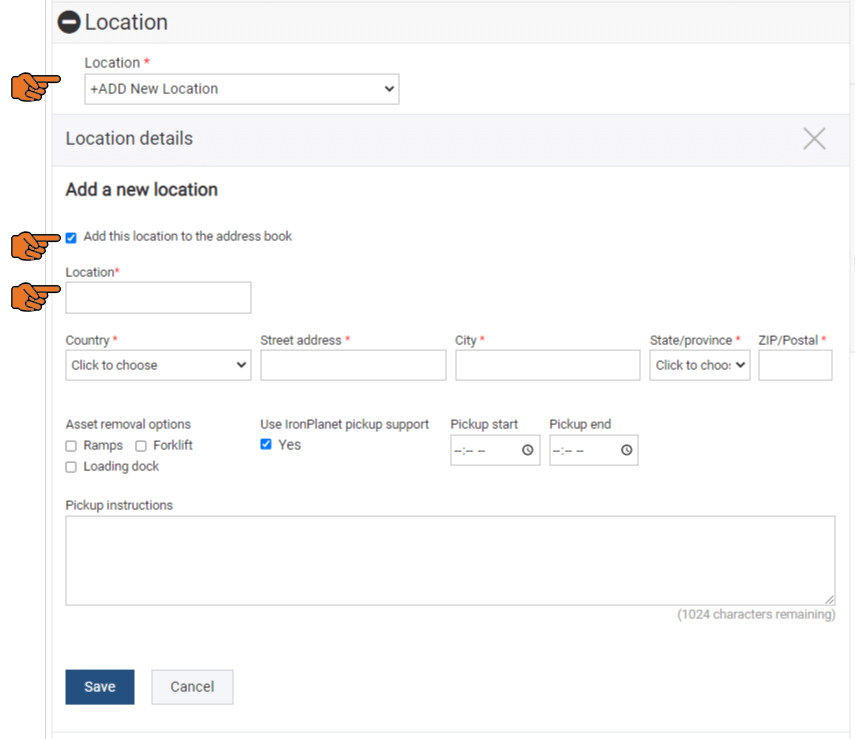
The Ritchie Bros. Asset Solutions Inventory Management System allows each user to manage their own locations. This feature allows a user to enter all the information about a storage location once and then re-use that same location information every time they add an asset by selecting the location from a dropdown.
How do I store a location to use in the future?
Follow this easy step-by-step guide
Step 1: Go to the manage locations section
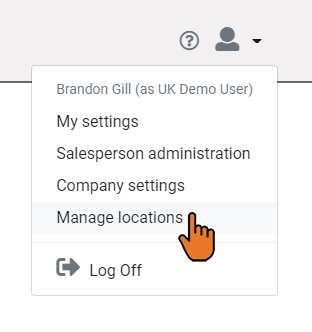
- After you've logged into the IMS, click on the my account dropdown in the top right-hand corner of the page

- Then select the Manage Location option from the dropdown
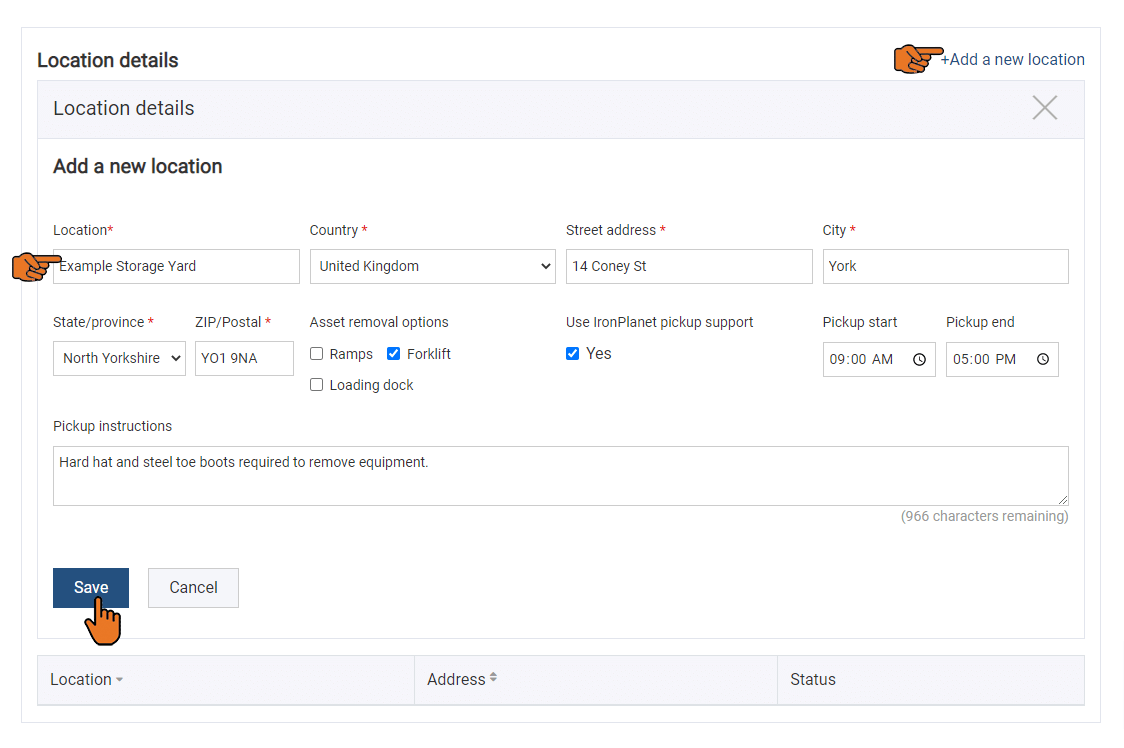
Step 2: Add a new location and complete the address and pickup detail
- First, click on the link to +Add a new location
- This will expand a location details window where you can enter all the required fields about a location.
- Then add all of the required details and save your changes
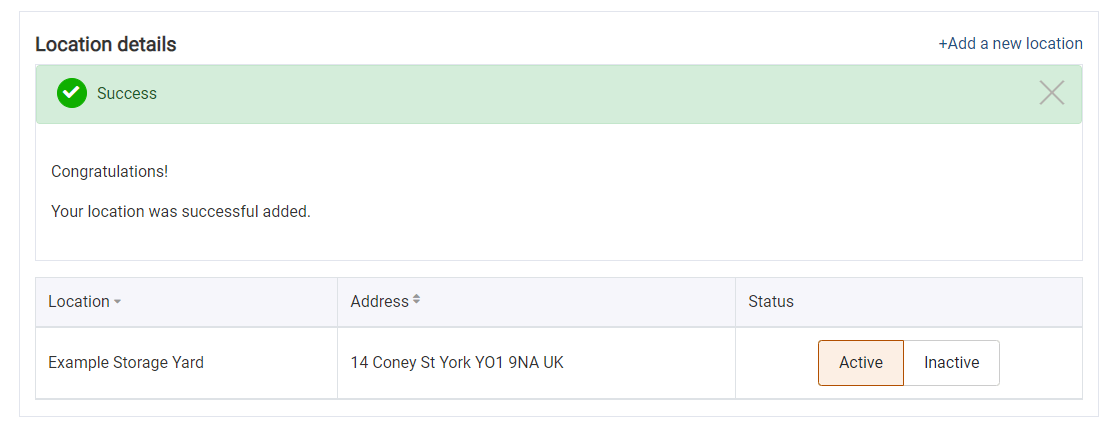
- After you have saved you will see a confirmation message and then the page will refresh and show you the location you just added.
| Helpful tips |
|
Step 3: Choose your location from the dropdown
- The next time you need to choose a location you will see all of your active locations in the dropdown list.
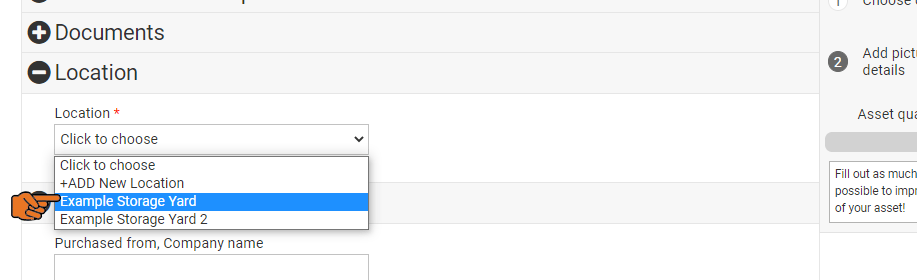
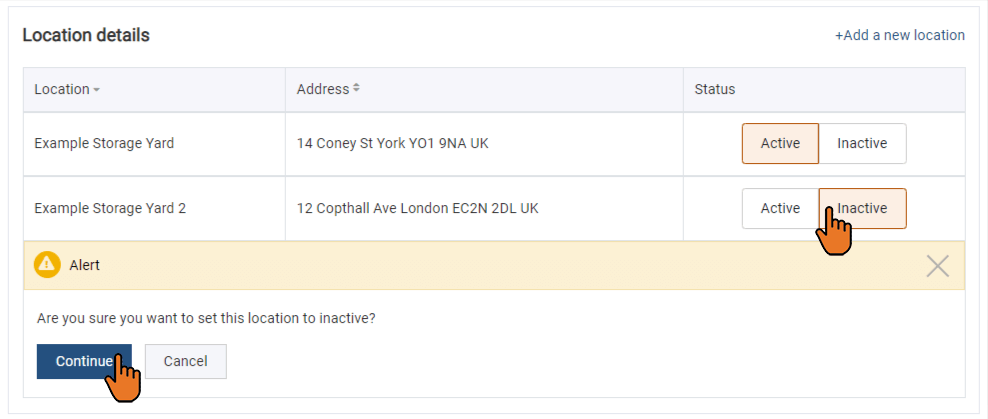
- If you no longer want a location to appear in the dropdown, return to the manage location screen and set the location to inactive.
- You can also save a location from the dropdown list. Simply choose the Add New Location option and then select the checkbox to add this location to the address book. This will add the Location field to the address you've entered. This field is needed to determine how this address will appear in the dropdown list the next time you add, edit or workflow an asset.